Data Connectors

Data Connector Quickstart

Build a read-only data connector extension for the Art Institute of Chicago API step by step, install it, and query it in Studio.
Preview
Extensions are in preview and can change in breaking ways between releases. Use them in non-production environments only. See Stability. Written for Monospace 1.0.0, @monospace/cli 0.2 and @monospace/extension-kit 0.3.

Tutorial

Build a read-only data connector extension for the Art Institute of Chicago API, starting from the CLI scaffold, and browse its collections in Studio. The connector exposes two collections, artworks and artists, linked by a relation. Each item (a single data object) in artworks is one artwork, with fields such as title and dateDisplay.

The API needs no key and no signup. Monospace queries the API live through the connector and copies nothing.

What you'll learn:

  • Adapt the CLI scaffold to read from the Art Institute API.
  • Install the extension, create a data source in Studio, and browse its collections there.
  • Declare collections, their filters, paging, and a relation, then implement every operation you declare.
  • Send every request to the external data source through one function, with a time limit.
  • Reject requests the external data source can't serve, with an error class the caller understands.

Before you start:

  • A self-hosted Monospace instance (a running deployment) with an install location for extensions and automatic reloading enabled. See Install and Manage Extensions. At startup, the instance logs watching installed bundles directory for changes.
  • Node.js 22.12 or later and a package manager: npm, pnpm, yarn, or bun. Step 1 runs the monospace CLI without installing it, and the project it creates lists the CLI as a dev dependency.
  • Permission in Studio to create data sources and read the collections they expose, such as the Administrator role in your workspace.

The example requests use the workspace blog.

The code panel shows the project as of each step and highlights what the step changed. Hover a highlighted term, or a table row, to find it in the code.

  1. Part 1

    Scaffold and install

    Install the project the CLI writes before you change any code. Then create a data source in Studio and read the connector's two sample items to check the installation.
  2. Step 01

    Scaffold the project

    Create a connector project with the CLI.

    +4 more

    The CLI writes a small project that already builds. It has one data connector entry (a capability the extension contributes), which serves two sample items.

    Pass a new directory, --id, and --name to run the CLI without prompts. It lists the files it wrote and the next commands to run:

    npx @monospace/cli@0.2 extension create ./artic --id example/artic --name "Art Institute of Chicago"

    Run the first command under Next steps to enter the artic directory and install its dependencies. The CLI prints these commands for your package manager.

    ResultThe CLI lists seven files and its next steps, and installing the dependencies finishes without errors.
  3. Step 02

    Inspect the scaffold

    Locate the configuration, the schema, and the query handler. Nothing changes in this step.

    No code changes

    extension.config.json names the extension, example/artic, and its only entry, example/data-connector. The entrypoint is the file the CLI bundles.

    index.ts defines the connector with defineDataConnector. Its setup function runs when a data source starts and receives that data source's configuration. It returns the handlers Monospace calls:

    • introspect reports the schema: the collections, fields, and operations callers can use.
    • query handles reads. The scaffold ignores the request and returns the same two items.
    • testConnection reports whether the connection works, and Monospace runs it before it creates a data source. The scaffold returns { ok: true } without sending a request. In step 7, you make it send a request to the Art Institute API.

    schema.ts declares one collection, items, with an unfiltered readMany. The sample items are in ROWS.

    Monospace offers callers only the operations the schema declares, and it doesn't filter the items query returns. Implement each filter, sort, or limit when you declare it.

    See Data Connector API for setup, the handlers, and the query shapes.

    Watch out
    Connectors don't run in Node.js, so use web APIs such as fetch; node: imports are unavailable. Request Node.js API compatibility if your connector needs it.

    ResultThe query handler returns the two sample items in ROWS.

  4. Step 03

    Rename the entry and allow the API host

    Rename the entry, move its folder, and allow one host.

    +2 more

    In extension.config.json, rename the entry to example/artic-connector. A data source uses this entry ID as its provider. Point the entrypoint at a directory named after the connector, src/data-connectors/artic/.

    Add the permission net:api.artic.edu to the entry. The connector can reach only the hosts its entry declares. When you create a data source, you approve access to those hosts.

    Set the extension and entry icons to lucide:landmark. In package.json, rename the package from the scaffold's example-artic to artic-connector, and update the paths in the README. Keep the extension ID, example/artic, as the scaffold wrote it.

    The code only moves, so the connector still serves the two sample items.

    See Extension Config and Manifest for the extension's fields, and Declare the Entry for the entry's fields.

    Why
    The scaffold names every entry <namespace>/data-connector, so a second scaffolded extension under example gets the same entry ID. Give your entry a distinct ID.

    Move the code, then build to check the rename. The build lists the renamed entry and its artifact directory:

    mv src/data-connectors/example src/data-connectors/artic
    npm run build

    ResultThe build lists the entry as example/artic-connector.

  5. Step 04

    Install the extension

    Build the project into your instance's extensions directory, and find the extension in Studio.

    No code changes

    Install the extension before you change its code. The connector still serves the scaffold's two sample items, so this checks your setup end to end.

    Create the quick-start in a directory named monospace next to artic, or change the --install-to path. ../monospace holds the quick-start docker-compose.yaml and its extensions directory.

    --install-to builds the project and copies the result into that extensions directory. The output lists the artifact and the installed extension directory:

    npm run build -- --install-to ../monospace/extensions

    Restart the instance if automatic reloading is disabled. With automatic reloading enabled, Monospace loads the extension once its files stop changing, and the instance logs bundle installed.

    In Studio, open Workspace Settings (the gear icon in the sidebar), then Extensions. The page lists the extension, Art Institute of Chicago (example/artic), and its entry, example/artic-connector, marked Data Connector. The names, IDs, and icon come from extension.config.json.

    Watch out
    Until Monospace loads the build, the page shows No Extensions Available.

    Run docker compose restart monospace in ../monospace in these cases:

    • On macOS, the extension doesn't appear. The container can miss changes made on the host through a bind mount.
    • The instance logged failed to watch installed bundles directory; bundle hot reloading is inactive. The install location didn't exist when the instance started.

    See Reload Extensions Automatically.

    ResultStudio lists the entry example/artic-connector under Workspace Settings > Extensions.

  6. Step 05

    Create a data source and read the sample items

    Create a data source in Studio, review the host it may call, and browse the sample items.

    No code changes

    A data source is a connector configured in one workspace. It adds the connector's collections to that workspace. Create a data source in Studio:

    1. Open Data Model, then Add Source, and choose Art Institute of Chicago.
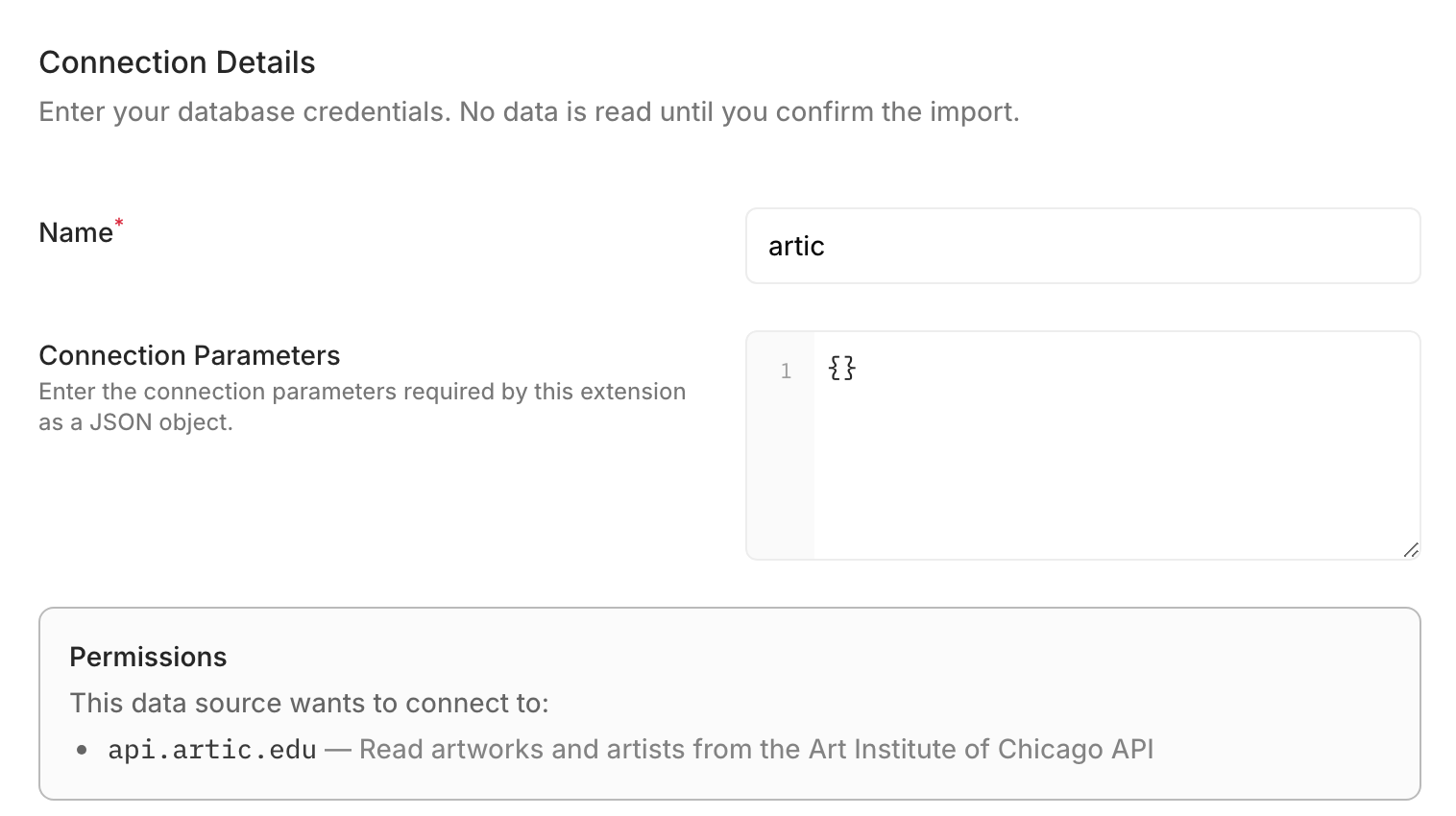
    2. Enter artic as the Name. Leave Connection Parameters at {}, because this connector has no configuration.
    3. Review Permissions: the data source requests access to api.artic.edu, for the reason declared in step 3. Creating the data source grants this permission.
    4. Choose Test Connection. Studio reports Connection Test Successful. Then choose Continue.
    5. Keep items selected, choose Review, then Add 1 Collection.

    Open Content, then Items, to see the two sample items, First and Second. The collection is items from schema.ts, and its items come from ROWS. Add Item is disabled because the collection declares no writes.

    Remove the sample data source before you change the schema. In Data Model, open the menu next to artic, choose Remove Data Source, and confirm with Remove. Removing a data source removes its collections from the workspace, so Items disappears from Content.

    Why
    A data source keeps the schema it was created with, and a new build changes only its code. Part 2 changes the schema, so Part 3 creates the data source again.

    ResultStudio lists the two sample items, First and Second. Once you remove the data source, Items is gone from Content.

  7. You now have

    The extension builds and installs, and Studio shows the connector's two sample items. Part 2 replaces the sample data with Art Institute data.
  8. Part 2

    Build the connector

    Replace the sample with the Art Institute connector by defining its schema and API requests. Add paginated reads, filters, reads by ID, the relation, and failure handling. This part changes code only; request examples show the reads affected by each change and correspond to reads Studio sends in Part 3.
  9. Step 06

    Declare artworks

    Replace the sample collection with artworks and its four fields.

    In schema.ts, replace the items collection with artworks, one item per artwork:

    DeclarationWhat it meansWhy
    id: field.int32()Each artwork's ID, a whole numberThe API's IDs fit in 32 bits, so they travel as JSON numbers.
    title, dateDisplayText, or nullThe connector returns null where the API has no value.
    artistIdThe ID of the artwork's artist, or nullStep 12 links it to an artists collection.
    index.primary(['id'])id is the primary keyA read of one artwork uses this key, such as /items/artworks/27992.
    readMany with limit and offsetCallers list artworks, a page at a timeCallers can use only declared operations. Step 8 implements this paginated read.
    output: fields.all()Callers can select any field with the fields parameter, which picks the fields a read returnsStep 8 returns exactly the fields selected.
    No writeNo create, update, or delete: artworks is read-onlyThe Art Institute API is read-only. So extension.config.json declares no query capabilities, which only writes use.

    An int64 or uint64 field reaches the connector as a string, primary keys included. Don't check its values with typeof x === 'number'.

    See Operations and Operators for everything a collection can declare.

    In index.ts, remove the config parameter from setup, because the Art Institute API needs no configuration. Until step 8, make query reject every read with QueryRejected.

    Why
    Monospace sends query only collections the schema declares. For any other name, the connector throws a plain Error.

    ResultThe schema declares artworks, and query rejects every read until step 8 implements reads.

  10. Step 07

    Call the search API

    Send every request through one function.

    Every read goes to a search endpoint on api.artic.edu, such as POST /api/v1/artworks/search, which takes an Elasticsearch query. Create api.ts with a search function that sends one request to the collection's /search endpoint. Keeping every request in one function lets step 13 add a time limit in one place.

    • The connector reads two values from the response: data contains the items, and pagination.total gives the number of matching items.
    • For a failed HTTP status, the connector throws a plain Error, which Monospace reports as a failed query.
    • apiFieldName converts a connector field name to the API's field name (e.g., artistId becomes artist_id).

    In index.ts, change testConnection to send a search for zero items. It checks that the API responds, without reading any artworks:

    Connector sends

    POST /api/v1/artworks/search
    {"size": 0}
    Monospace runs testConnection when you choose Test Connection in Studio, and before it creates a data source. You create one in step 14.

    ResultCreating a data source sends a real search request, and fails when the search fails.

  11. Step 08

    Read artworks, one page at a time

    Implement readMany by translating the sort, the selected fields, and paging into search requests.

    In schema.ts, add byId to readMany: a sort on id, ascending or descending. Create read.ts with a readMany function, and call it from query in index.ts. readMany translates each part of the caller's request into the search request:

    PartCaller's requestSearch request
    limitlimit=3"from": 0, "size": 3
    offsetoffset=995&limit=5"from": 995, "size": 5
    sortsort[0][id][direction]=desc"sort": [{"id": {"order": "desc"}}]
    No sortNo sort"sort": [{"id": {"order": "asc"}}], so pages don't overlap
    fieldsfields=id,title"fields": ["id", "title"]

    The search API returns at most 100 items per request, so a larger limit becomes several requests. readMany stops when a page holds fewer items than requested, because no more items remain.

    toItem returns exactly the selected fields, with null where the API has no value. The read fails if a returned value doesn't match its field's declared type.

    Request

    GET /api/blog/items/artworks?fields=id,title&sort[0][id][direction]=desc&limit=3

    Connector sends

    POST /api/v1/artworks/search
    {
      "sort": [{"id": {"order": "desc"}}],
      "fields": ["id", "title"],
      "from": 0,
      "size": 3
    }

    Response

    {"data": [
      {"id": 287848, "title": "Eat"},
      {"id": 286661, "title": "Siebrits-Bartz Anti-Apartheid Collection"},
      {"id": 286660, "title": "Risen Christ"}
    ]}
    In step 15, Studio sends a read like this when you sort by ID descending.
    Why
    The schema declares no count, no sort on other fields, and no writes, so callers can't request them. A request outside the declaration gets a plain Error.

    ResultA read returns artworks in id order, a page at a time, with exactly the fields selected.

  12. Step 09

    Filter by ID and artist

    Declare equals and in on the ID fields, and translate filters into search queries.

    The search API matches IDs exactly, so in schema.ts, declare equals and in on id and artistId, with and to join conditions. The API matches titles case-insensitively, so title gets no filter: equals would return extra items.

    Create filter.ts with toQuery, and call it from readMany in read.ts. toQuery translates each part of the filter:

    FilterCaller's requestSearch query
    equalsfilter[artistId][_eq]=40810{"term": {"artist_id": 40810}}
    infilter[id][_in][]=27992&filter[id][_in][]=28560{"terms": {"id": [27992, 28560]}}
    andBoth filters at once{"bool": {"filter": [{"term": {"artist_id": 40810}}, {"terms": {"id": [27992, 28560]}}]}}
    orA role's permission rules, which Monospace joins with orbool.should, with at least one match
    Anything elseAny other filter, such as notRejected with QueryRejected before any request: "The Art Institute connector answers only equals and in, joined with and or or."

    For equals with null, the connector sends bool.must_not.exists, the search API's test for a missing value. The search API rejects null in terms, so in leaves null members out. An in filter therefore never matches an artwork whose filtered field has no value.

    Declare a filter only where the API matches it exactly. Never skip part of a filter, because the read would return items that filter excludes.

    Request

    GET /api/blog/items/artworks?fields=id,title,dateDisplay&filter[artistId][_eq]=40810&limit=3

    Connector sends

    POST /api/v1/artworks/search
    {
      "query": {"term": {"artist_id": 40810}},
      "sort": [{"id": {"order": "asc"}}],
      "fields": ["id", "title", "date_display"],
      "from": 0,
      "size": 3
    }

    Response

    {"data": [
      {"id": 20199, "title": "Final Study for \"Bathers at Asnières\"", "dateDisplay": "1883"},
      {"id": 27992, "title": "A Sunday on La Grande Jatte — 1884", "dateDisplay": "1884–86, border added 1888–89"},
      {"id": 61616, "title": "Oil Sketch for \"A Sunday on La Grande Jatte — 1884\"", "dateDisplay": "1884"}
    ]}
    In step 15, Studio sends this filter when you filter Artist ID by 40810.
    Watch out
    A filter on a field the schema doesn't declare, such as title, never reaches the connector. Studio offers no filter for title (step 16), and API requests get 422 with a message that starts "Unknown input field title".

    ResultThe connector translates filters on id or artistId into search queries, and rejects filters it can't translate.

  13. Step 10

    Reject reads past the search window

    Stop at the API's 1,000th result with a message the caller can act on.

    The search API rejects any request that reaches past its 1,000th result. A schema can't declare a paging ceiling, so the connector checks it in code. See No Declarable Page Size or Depth Limit.

    Add the search-window check to readMany in read.ts. For a read past result 1,000, readMany first counts the matches with a search for zero items, and caps the read at the last match. A filter that matches fewer than 1,000 artworks makes any offset safe.

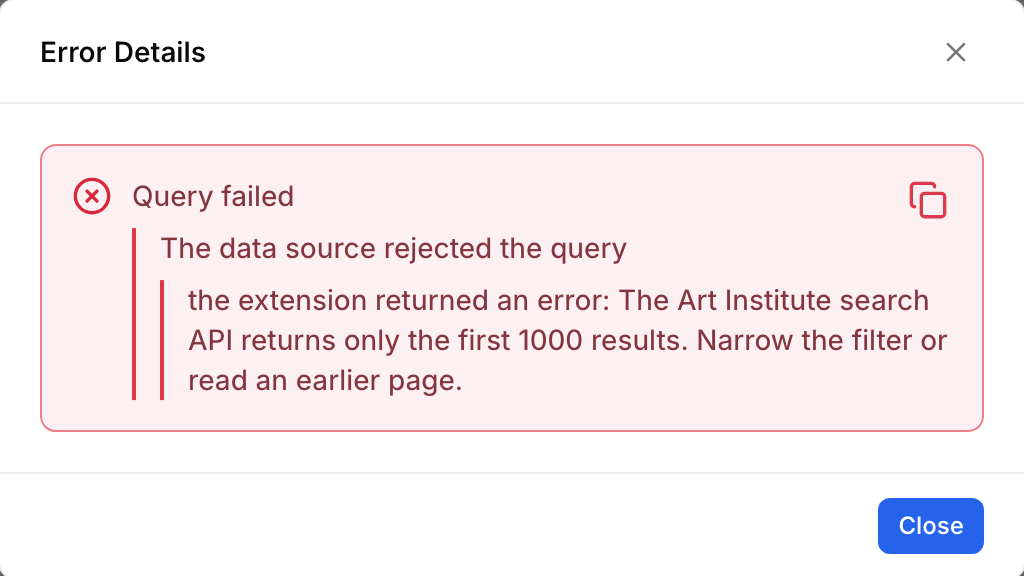
    If the capped read still reaches past result 1,000, readMany throws QueryRejected with a message that tells the caller how to narrow the read:

    Request

    GET /api/blog/items/artworks?fields=id&limit=1001

    Connector sends

    POST /api/v1/artworks/search
    {"size": 0}

    Response · 422

    {"message":"Query failed","source":{"message":"The data source rejected the query","source":{"message":"the extension returned an error: The Art Institute search API returns only the first 1000 results. Narrow the filter or read an earlier page."}}}
    In step 16, Studio sends a read like this when you show 1,000 artworks per page.

    With limit=1000, the read ends at result 1,000, and it succeeds.

    ResultThe connector rejects a read past the 1,000th result with its message, before requesting any item data.

  14. Step 11

    Read one artwork

    Implement reads by ID through readMany.

    In schema.ts, declare readOne, a read of one artwork by its ID, with the same filter as readMany.

    In read.ts, add a readOne function, and call it from query in index.ts. readOne calls readMany with the artwork ID, any filter the caller adds, and a limit of one item. This reuses the filter translation from step 9.

    Request

    GET /api/blog/items/artworks/27992?fields=id,title,dateDisplay

    Connector sends

    POST /api/v1/artworks/search
    {
      "query": {"term": {"id": 27992}},
      "sort": [{"id": {"order": "asc"}}],
      "fields": ["id", "title", "date_display"],
      "from": 0,
      "size": 1
    }

    Response

    {"data": {"id": 27992, "title": "A Sunday on La Grande Jatte — 1884", "dateDisplay": "1884–86, border added 1888–89"}}
    In step 15, Studio reads one artwork this way when you open it.

    readOne returns the artwork in record, or record: null when no artwork matches. It doesn't throw for a missing artwork; the caller gets 404 with the message "No record found".

    Watch out
    Monospace rejects a REST ID that isn't an integer with 422 before the connector runs. readOne still returns record: null for a key that isn't a safe integer.

    ResultA read by ID returns the matching artwork, or 404 when no artwork matches.

  15. Step 12

    Add artists and the relation

    Declare a second collection, and link each artwork to its artist.

    In schema.ts, add the artists collection with id, title, and the same sort on id.

    Add a relation that links artworks.artistId to artists.id. On an artwork, the to-one artist relation returns a single related item. On an artist, the to-many artworks relation returns a list of related items.

    A relation is a declaration, not code. To include the artists, Monospace reads them by ID with in, which step 9 already translates.

    Request

    GET /api/blog/items/artworks?fields=id,title&filter[id][_in][]=27992&filter[id][_in][]=28560&include[artist][fields]=id,title

    Response

    {"data": [
      {"id": 27992, "title": "A Sunday on La Grande Jatte — 1884", "artist": {"id": 40810, "title": "Georges Seurat"}},
      {"id": 28560, "title": "The Bedroom", "artist": {"id": 40610, "title": "Vincent van Gogh"}}
    ]}
    In step 15, Studio uses this read to show the Artist field of each artwork.

    ResultArtwork reads can include each artwork's artist, and artist reads can include their artworks.

  16. Step 13

    Handle failures

    Give every request a time limit, and report an API that doesn't respond.

    Monospace sets no time limit on query or testConnection. In api.ts, give each request a 10-second limit with AbortSignal.timeout, and throw ConnectionFailed when fetch fails. The connector then handles these outcomes:

    SituationWhat the connector does
    No response in 10 seconds, or no connectionThrows ConnectionFailed: "The Art Institute API did not answer."
    The data source's permissions block the hostThrows ConnectionFailed with the blocked request as its cause. Monospace detects that cause and reports a permission error. See Handle a Denied Request
    The API returns a failed statusThrows a plain Error (e.g., "The Art Institute API answered HTTP 403."). Monospace reports a failed query
    A read past the 1,000th resultThrows QueryRejected with instructions for narrowing the read (step 10)
    A filter the connector can't translateThrows QueryRejected before sending a request (step 9)
    No artwork with that IDReturns record: null without throwing; the caller gets 404 (step 11)

    See Data Connector Errors for the error classes.

    ResultEvery request stops after 10 seconds, and the connector reports failures using the errors in the table.

  17. You now have

    schema.ts declares the operations callers can request, read.ts and filter.ts translate each read into search requests, and api.ts sends them with a time limit. Part 3 installs the finished extension.
  18. Part 3

    Run it

    Install the finished extension, create its data source, and browse its collections in Studio. You query the Art Institute API live through the connector from your workspace.
  19. Step 14

    Install the finished extension

    Install the finished build, and create the data source again in Studio.

    No code changes

    Install the finished build over the sample build, as in step 4. The output lists the artifact and the installed extension directory:

    npm run build -- --install-to ../monospace/extensions

    The CLI replaces the entire install directory. With automatic reloading enabled, Monospace loads the new build once its files stop changing. Without it, restart the instance.

    Create the data source again, as in step 5:

    1. Open Data Model, then Add Source, and choose Art Institute of Chicago.
    2. Enter artic as the Name, and leave Connection Parameters at {}.
    3. Choose Test Connection, then Continue.
    4. Keep both collections, artists and artworks, choose Review, then Add 2 Collections.

    Choosing Test Connection or creating a data source runs testConnection. testConnection sends a real search request (step 7), so Monospace doesn't create a data source that can't reach the Art Institute API.

    Watch out
    If Studio offers items instead, restart the instance as in step 4, then start over from Add Source. Monospace is still running the sample build.

    ResultData Model lists the artic data source with two collections.

  20. Step 15

    Query the collections

    Sort, filter, open one artwork, and follow the relation in Studio.

    No code changes

    Open Content, then Artworks. Studio lists 25 artworks per page in id order, and shows each artwork's Artist through the relation. Each action below sends a read that runs code from Part 2:

    1. Sort. Open the menu on the ID header and choose Descending. The list starts at the highest IDs: 287848 "Eat", 286661 "Siebrits-Bartz Anti-Apartheid Collection", 286660 "Risen Christ". toSort translates the sort (step 8).
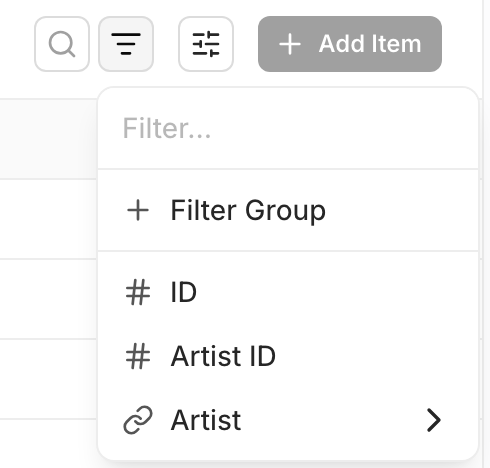
    2. Filter. Choose the Filter button in the toolbar, then Artist ID. Keep is, and enter 40810. Only works by Georges Seurat remain, because toQuery translates the filter into a term query (step 9).
    3. Open one artwork. Choose A Sunday on La Grande Jatte — 1884. Studio reads the artwork by ID through readOne (step 11), and its Artist field shows Georges Seurat.
    4. Follow the relation back. Open Artists, filter ID by 40810, and open Georges Seurat. The Artworks field lists his artworks through the to-many side of the relation (step 12).

    Your data connector serves live queries from Monospace!

    Query these collections over the API like any other collection. See Filtering and Relational Data.

    Studio derives display names from the collection and field names the connector declares. It shows artworks as Artworks, artistId as Artist ID, and dateDisplay as Date Display.

    ResultStudio shows the highest IDs first, the works of Georges Seurat, one artwork with its artist, and an artist with his artworks.

  21. Step 16

    Check query limits and available filters

    Exceed the search window, read the connector's error, and check which filters Studio offers.

    No code changes

    On Artworks, choose Reset in the filter bar to clear the filter from step 15. Then choose 25 per Page at the bottom, and 1000 per Page.

    Studio requests one extra artwork to check for a next page, so this read reaches result 1,001. readMany throws QueryRejected (step 10), and Studio shows Couldn't Load Items. Choose View Details to read the connector's message:

    Filter Artist ID by 40810 again to narrow the read, and the page loads the works of Georges Seurat. Reset clears the filter and returns to 25 per page.

    Studio offers only the filters and sorts the schema declares, and only the ID header offers sorting. The Filter list offers ID, Artist ID, and the Artist relation. It omits title and dateDisplay because neither field declares a filter.

    ResultA page of 1,000 artworks fails with the connector's message, and the filter list offers only declared fields.

  22. You now have

    The finished extension is installed on your instance, and its data source adds the connector's collections to your workspace. The connector serves live queries. When the Art Institute API can't serve a request, the connector rejects it with a message the caller can act on.
artic · data connector
TerminalOutput from a real run
npx @monospace/cli@0.2 extension create ./artic --id example/artic --name "Art Institute of Chicago"
Created the Art Institute of Chicago extension

Extension  example/artic
Entry      example/data-connector
Directory  /Users/Shared/code/artic
  - .gitignore
  - README.md
  - extension.config.json
  - package.json
  - src/data-connectors/example/index.ts
  - src/data-connectors/example/schema.ts
  - tsconfig.json

Next steps
  1. cd ./artic && npm i
  2. npm run build
Step 1 / 16Scaffold the project

What You Learned

  • Start from the scaffold. monospace extension create writes a connector that builds; rename its entry and declare the hosts it calls.
  • Install and approve access. build --install-to installs the extension. Approve access to the hosts its entry declares when you create a data source. Its collections then work in Studio and the API like any other collection.
  • Implement declared operations. Monospace offers callers, Studio included, only the filters and sorts the schema declares. It rejects a caller's filter on a field or operator the schema doesn't declare before your code runs. Implement every filter, sort, and page you declare.
  • Send requests through one function. That function gives every request to the external data source a time limit, and turns a failed request into an error.
  • Choose the error class by cause. Throw QueryRejected with a message the caller can act on for a valid request the external data source can't serve. Return record: null when a read by primary key finds no item; that isn't an error. Throw a plain Error for a collection, sort, or count the schema never offers.

What This Connector Leaves Out

The full Art Institute connector and the linked guides add three defenses:

  • Check filters against the schema. Monospace checks the filters callers send against the schema stored for the data source, which it imported from schema.ts when you created the data source. After you change schema.ts, refresh the data source's schema so the checks match.
    Monospace doesn't check the filter it hands to query, and this connector translates equals and in on any field it receives. The full connector also checks every filter against its declaration, and rejects a comparison it doesn't declare. See Translate a Rich Grammar.
  • Validate API responses. This connector trusts the structure and values of the API's responses. Validate each value during conversion so API changes produce a clear error in your connector. See Normalize Values.
  • Pick an error class for each failure. This connector reports every failed HTTP status as a plain Error. Callers therefore can't distinguish a rate limit, a rejected credential, and an outage. See Pick a Class for Each Failure.

Next Steps

MonospaceThe governed API layer for every app, person, and agent.

Copyright © 2026 Monospace Inc.